When the Blue Dot Drifts
When your phone map shows the wrong location, learn how to check its settings, orientation and indoor limits before choosing a safe route.
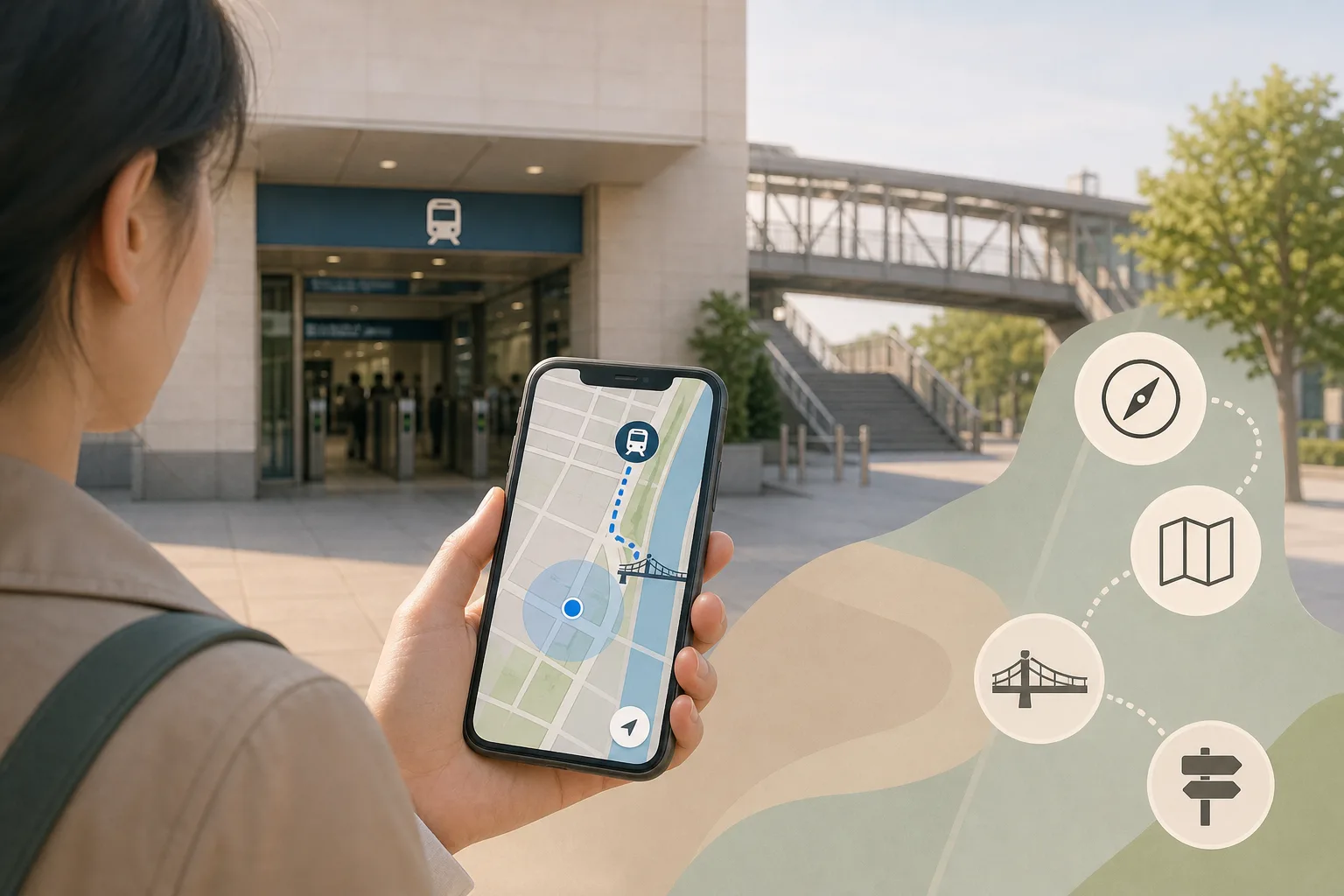
When your phone map shows the wrong location, learn how to check its settings, orientation and indoor limits before choosing a safe route.
Navigation · 5 min read
You leave a station, open your map and see the blue dot sitting across the road. When a phone map shows the wrong location, treat the dot as one clue, not an instruction to cross or turn.
Separate location from map orientation
The location marker estimates where your phone is. The map’s orientation shows which way the screen is facing or which direction is north. Those clues can disagree: a marker may be near the right place while the map turns unexpectedly.
Apps and phones use different combinations of location and compass information, and their displays vary. If the app shows an accuracy circle, treat it as an indication that the estimate may cover a broader area, not as a precise boundary. A drifting marker alone does not tell you why the estimate changed.
Check the phone before changing your route
Stay on a safe pavement or in a public place. Check the basics without walking into traffic, approaching a restricted area or waving the phone near other people.
- Location permission: Check whether the map app can access your location. If permission is off, enable it only if you are comfortable doing so; otherwise use a saved map or another way to orient yourself.
- Phone location setting: Check that the phone’s location service is on. If it is off, decide whether you want to switch it on; if not, rely on a fixed starting point and the map.
- App display: Tap the location control to recenter the map. If the marker remains confusing, close and reopen the app while stationary; if nothing changes, move on to another clue rather than repeatedly refreshing.
- Compass prompt: If the app offers calibration instructions, follow them in a clear, safe place. If no prompt appears or the direction still looks wrong, switch to a north-up view if available.
- Map access: Check whether the area is available offline if your connection is weak. If it is not, use signs or ask staff for directions instead of relying on map details that will not load.
- Surroundings: Check whether you are under a roof, underground or between tall buildings. If so, allow for a rougher estimate and use a known entrance or public wayfinding sign as your reference.
Use a fixed starting point, not a moving marker
Choose a feature that is clearly named or easy to identify on both the map and the ground: a station entrance, a bridge, a public square or a river bend. Compare the overall layout around that feature, rather than trying to match the screen’s angle to the way you are facing.
Street signs can help, but do not make them the only check. A sign may refer to a street beyond a junction, and a building can face a different road from the one beside it. Use the map’s shapes and your surroundings together, then choose a route that stays on a safe, public path.
Say you leave a station and the marker appears behind the building. You can see the station’s named entrance and a footbridge that also appears on the map. Start from the entrance, identify which side of it the footbridge lies on, and follow the mapped public path towards it; the expected result is a route based on two fixed features rather than the drifting marker.
Reset the direction when the map faces the wrong way
Check whether the app is set to north-up or to rotate with the phone. If it rotates, use the compass or orientation control to return to north-up when available. This makes it easier to compare the map with the shape of a street or square without assuming that the top of the screen is north.
A compass reading can be disturbed by nearby metal or electronic equipment, and app behaviour differs. If the direction indicator keeps turning, do not follow it blindly. Use a fixed point to establish where you are, then choose a route from the map’s layout.
Use local wayfinding indoors and underground
Inside a building, beneath a platform or in an underground passage, a phone’s position may not distinguish the correct entrance, floor or side of a station. Look for the place’s own wayfinding: exit names, platform signs, concourse maps and marked public routes.
At a station, use posted line and platform information rather than assuming the phone indicates which side of the tracks you are on. If meeting someone outside, agree on a named entrance or a recognisable public landmark. A shared map marker may not be accurate enough to identify a precise meeting spot.
What should you do when the map remains unclear?
Should you keep walking until the marker settles?
No. Stay somewhere safe and use a fixed feature to establish your starting point. If the marker continues to shift, plan from that feature or ask staff for help.
Can the map show the right place but the wrong direction?
Yes. Position and orientation are separate clues, and either may be uncertain. Try north-up mode if available, then compare the map’s layout with a fixed feature.
Why can the marker move while the phone is still?
The app may update its estimate as the information available to it changes. If the app shows an uncertainty area, treat the position as approximate and use a named entrance or other clear reference instead.
When should you ask someone for directions?
Ask station staff, venue staff or another appropriate worker if signs are unclear or a route seems restricted. Name your destination or entrance, and follow posted safety instructions.
Choose the next turn from a stable reference
Once you have a starting point you can identify, check the route’s next feature on the map before moving: for example, a footbridge, a bend or a public square. If the route and the surroundings do not agree, pause somewhere safe and ask for help rather than forcing the marker to fit.
When your phone map shows the wrong location, a permission check may help, but it cannot replace local wayfinding where the estimate is unclear. Keep a saved map when practical, use named public entrances as anchors, and make each turn from a feature you can identify on the ground.
Nearby ideas
Why North Sits at the Top of So Many Maps
Why north sits at the top of maps: understand how this familiar convention developed and decide…
How to Read a Transit Map Legend Before You Choose a Route
Learn how to read a transit map legend and distinguish routes, branches and transfers before you…